1Step 1 of 10
Land and sign up
Open assistant.bd and click Get started free. Sign in with email + password or Google — no credit card, no sales call.
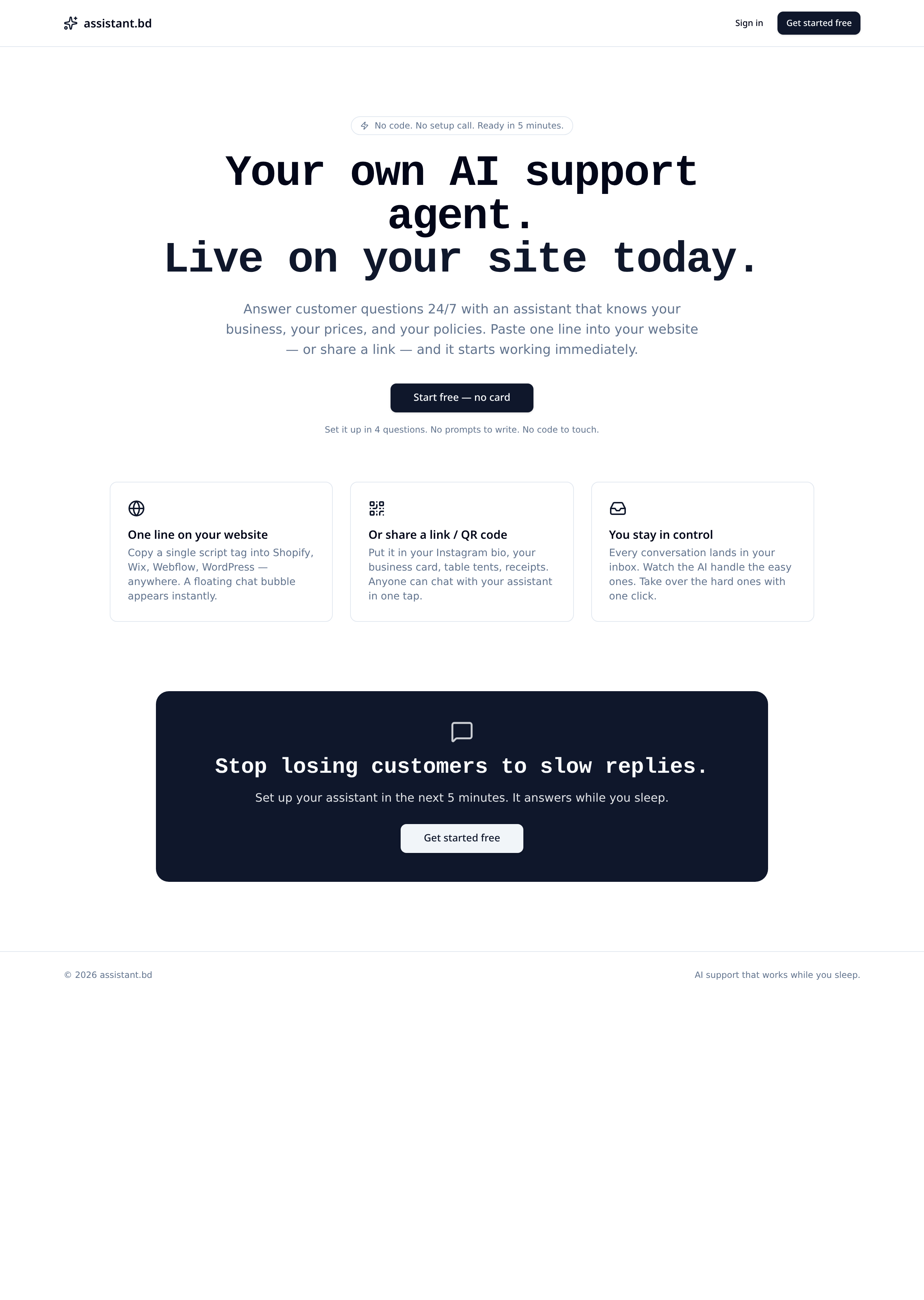
Everything from sign-up to your first customer chat. No code shown. Nothing to install.
Open assistant.bd and click Get started free. Sign in with email + password or Google — no credit card, no sales call.
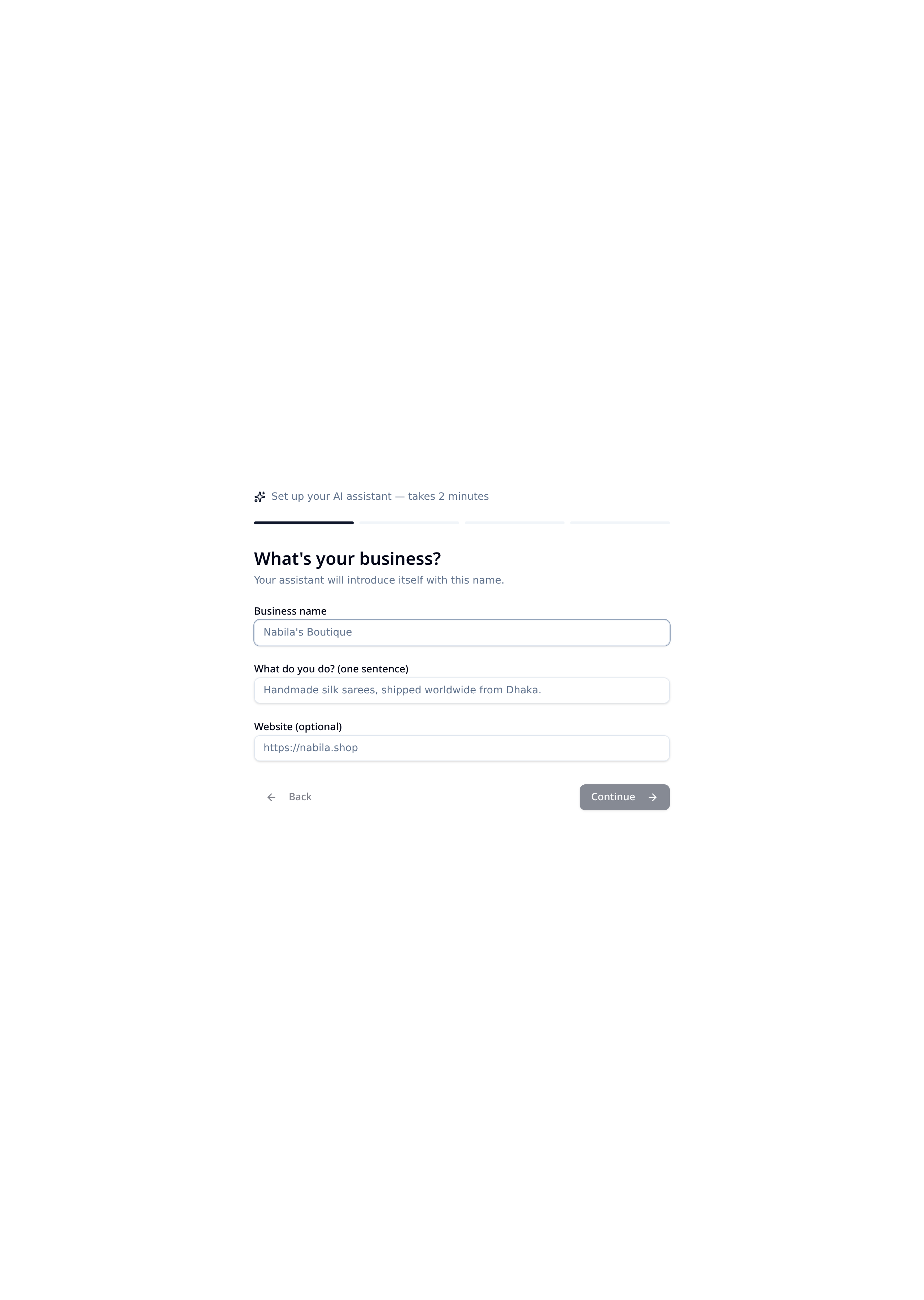
The 2-minute wizard opens. Type your business name, a one-line description, and (optionally) your website. Your assistant introduces itself using this name to every visitor.
Takes ~20 seconds. You can change any of this later.
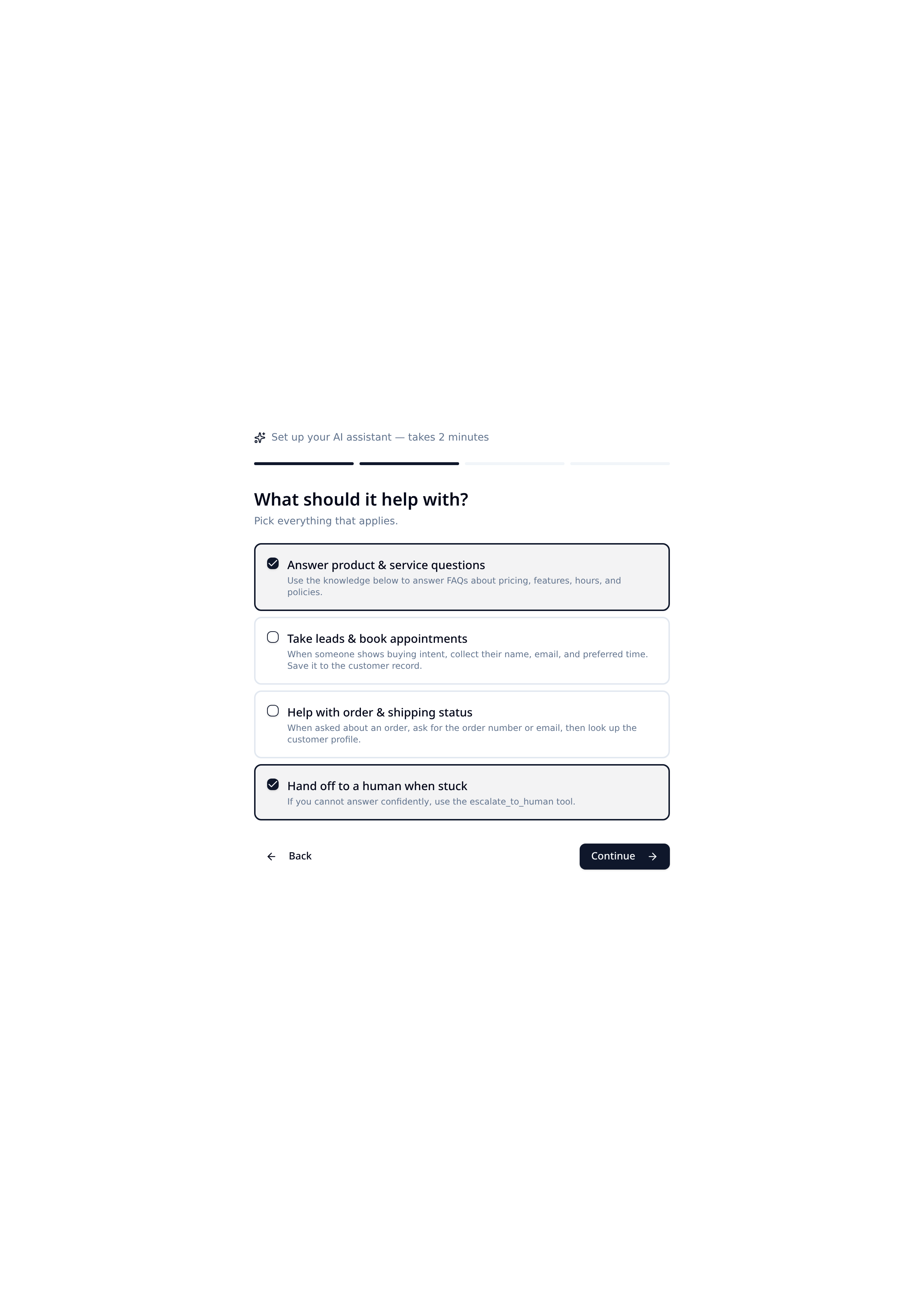
Tick every job you want the assistant to do — answer FAQs, capture leads, route to a human, and more. Skills are modular; toggle them any time from the Assistant page.
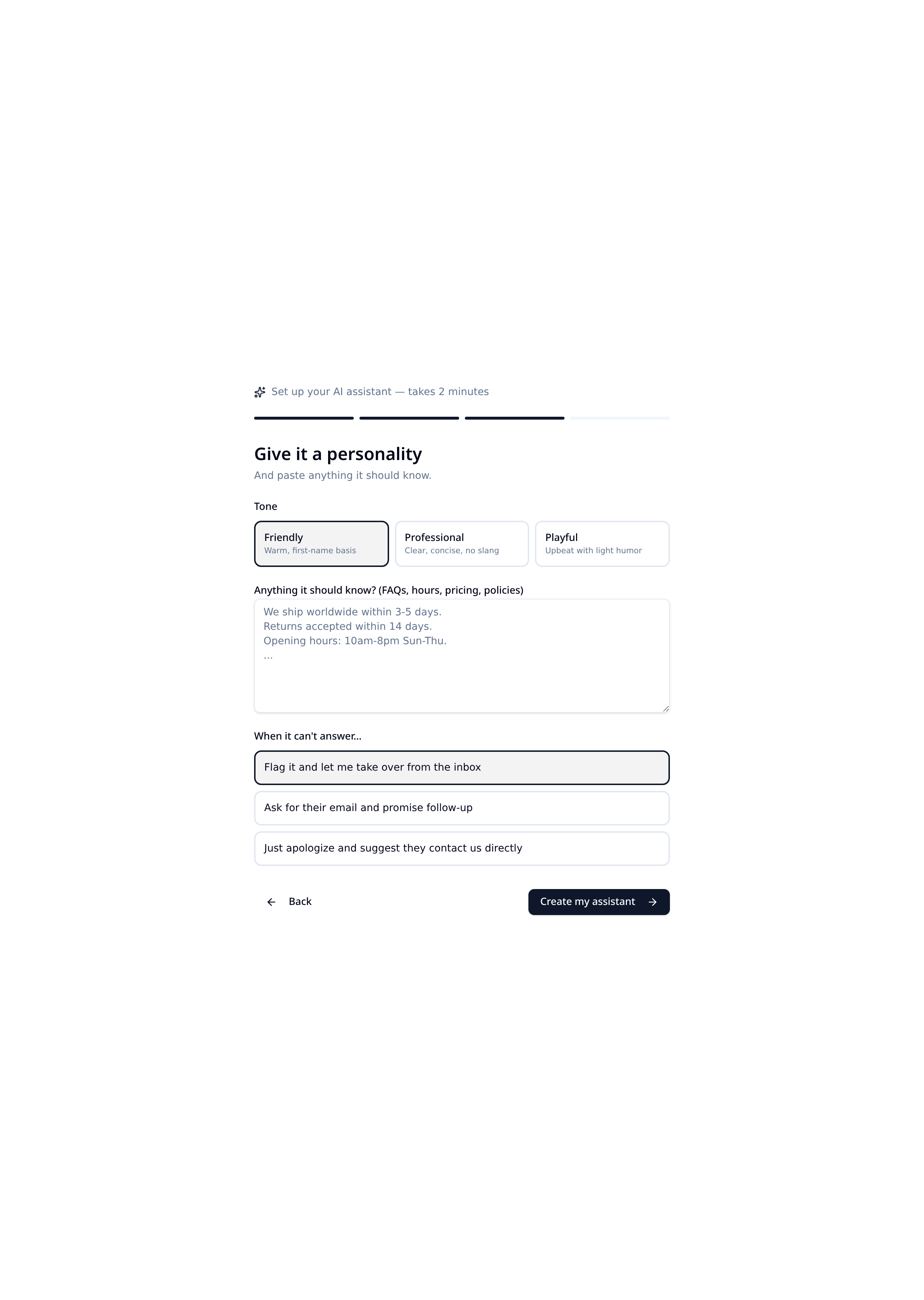
Pick a tone (Friendly / Professional / Playful). Paste anything it should know — hours, pricing, shipping, return policy, FAQs. Choose a fallback for when it can't answer: flag you, collect email, or apologize.
Everything you paste here becomes the assistant's knowledge base. Plain text is fine.
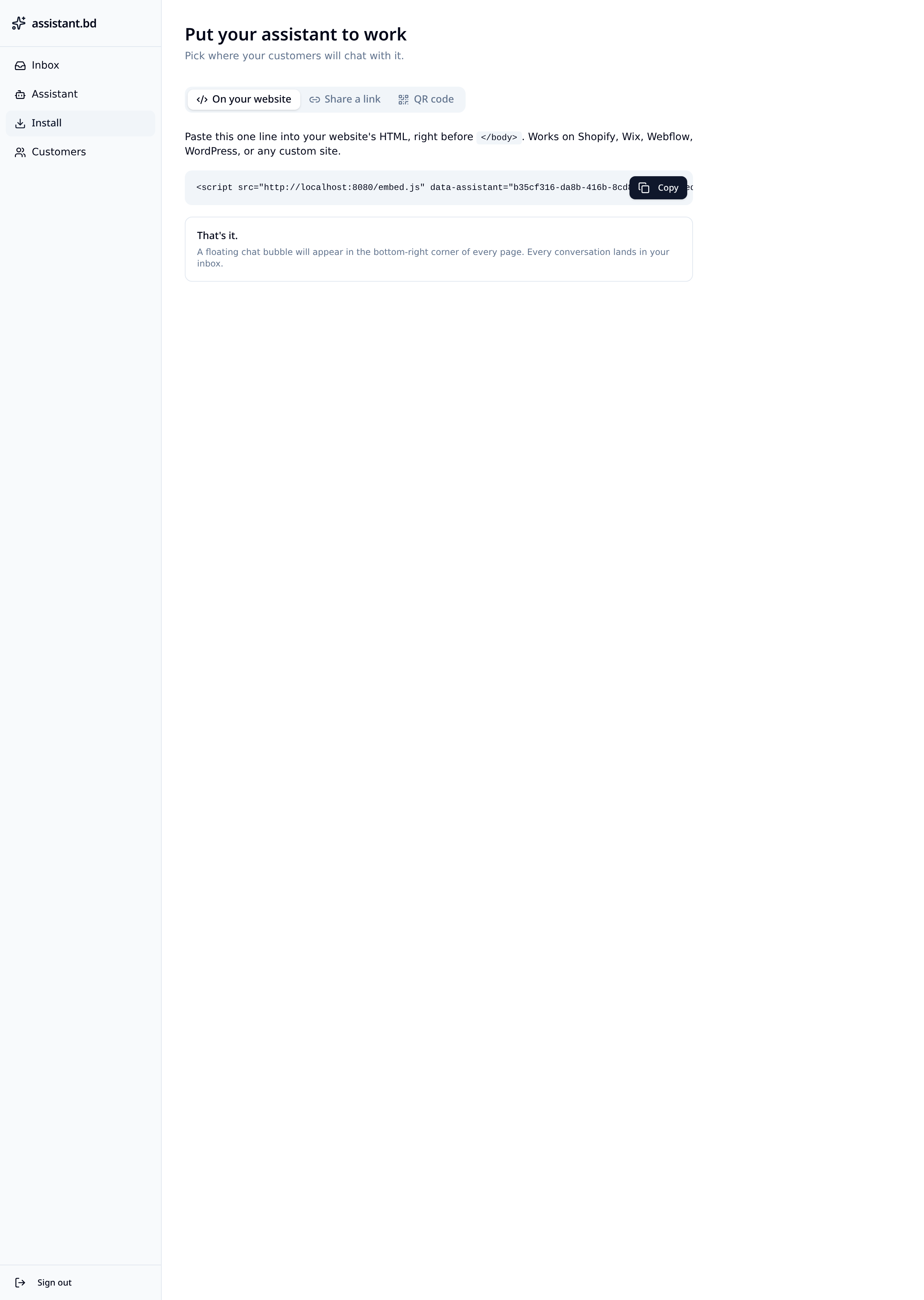
Copy one line of HTML and paste it before </body>. Works on Shopify, Wix, Webflow, WordPress, or any custom site. A floating chat bubble appears in the bottom-right of every page.
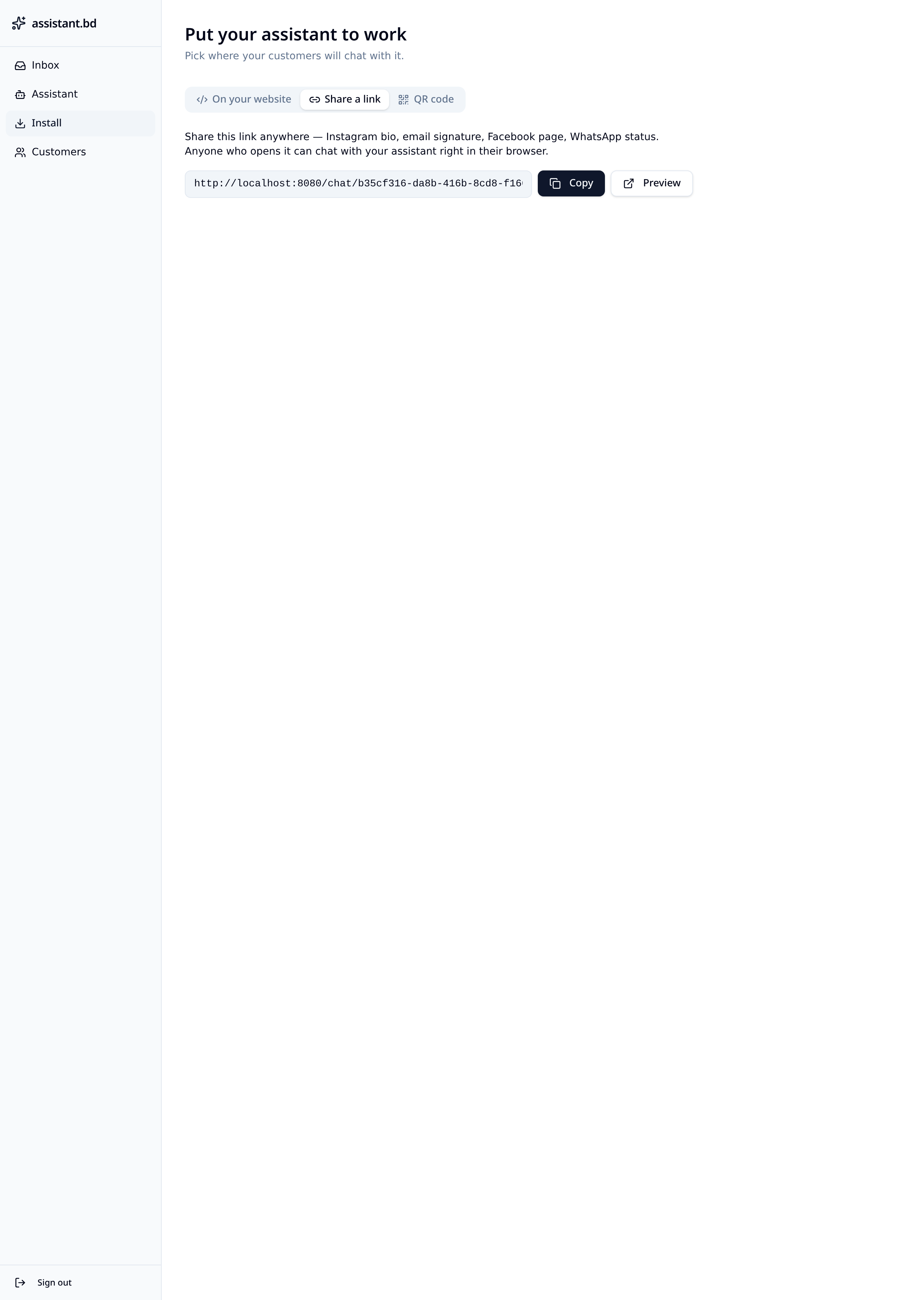
No website? Share the direct link on Instagram bio, email signature, Facebook page, or WhatsApp status. Anyone who taps it chats with your assistant right in their browser.
Download the QR and print it on flyers, receipts, business cards, table tents, or shop windows. Scanning opens a chat instantly — no app install.
A clean chat window branded as Support. Mobile-friendly. They just type — no login, no form to fill out.
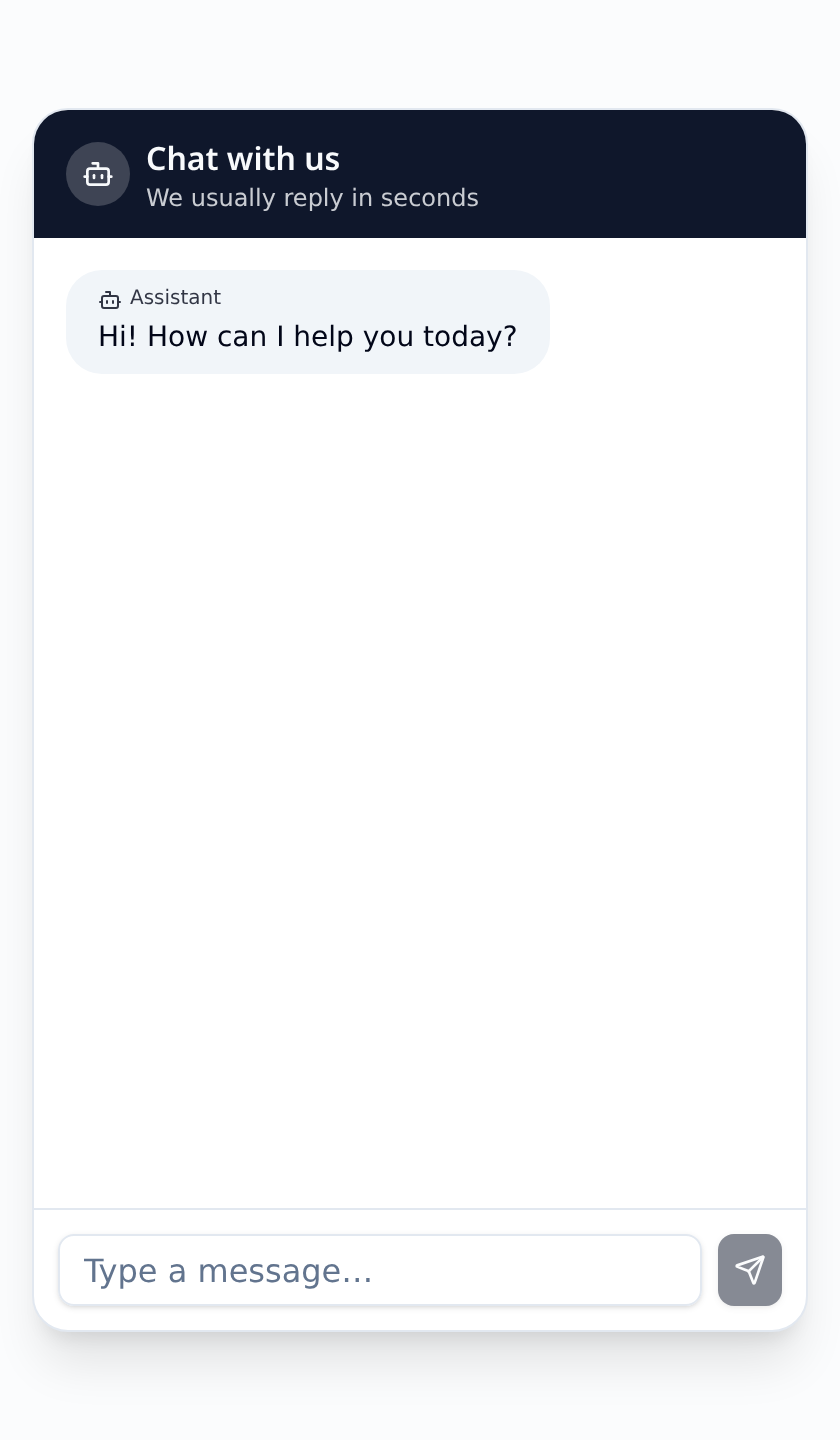
Within seconds, the assistant replies using the knowledge you pasted plus everything about your business. Every conversation is saved.
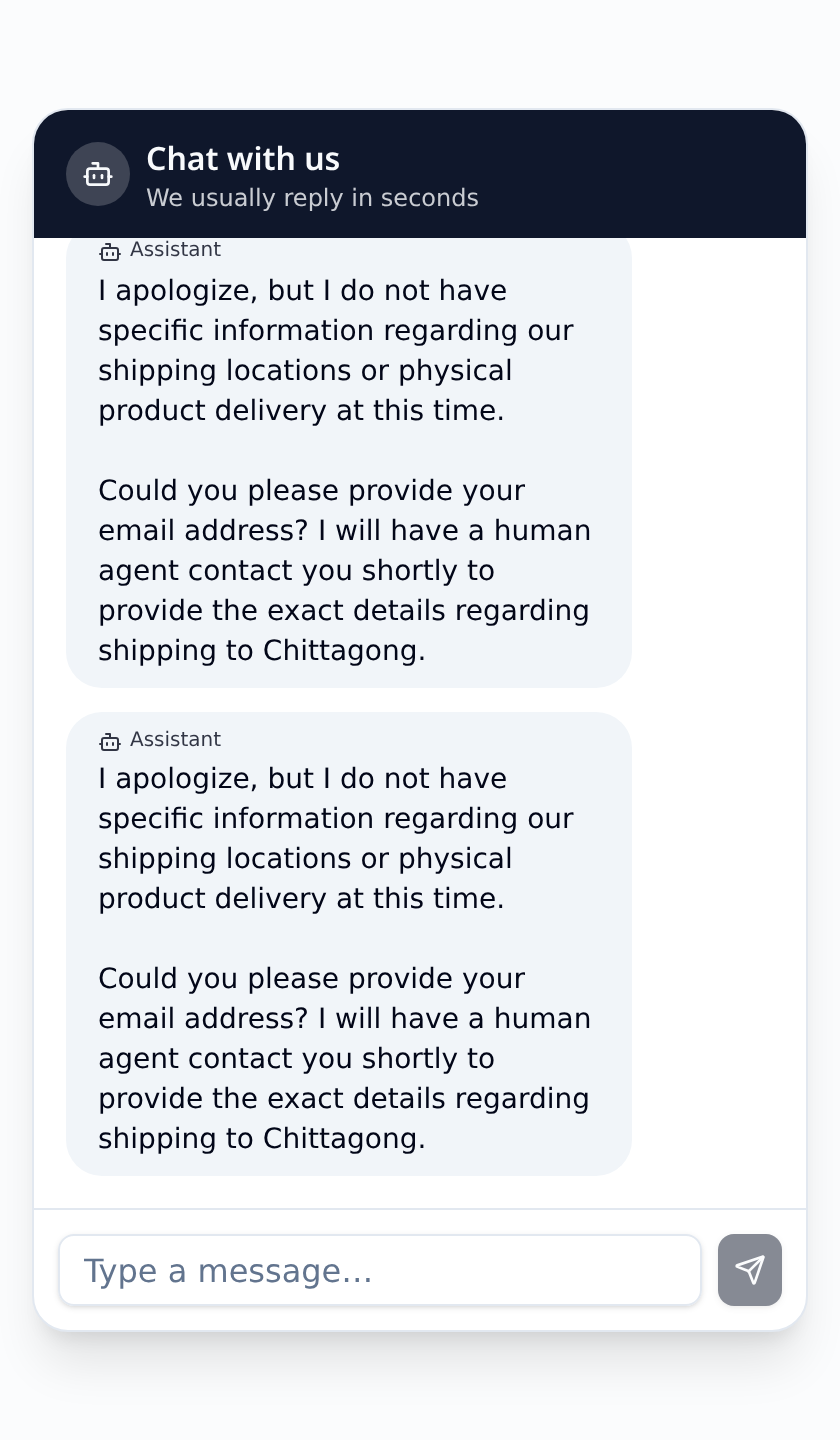
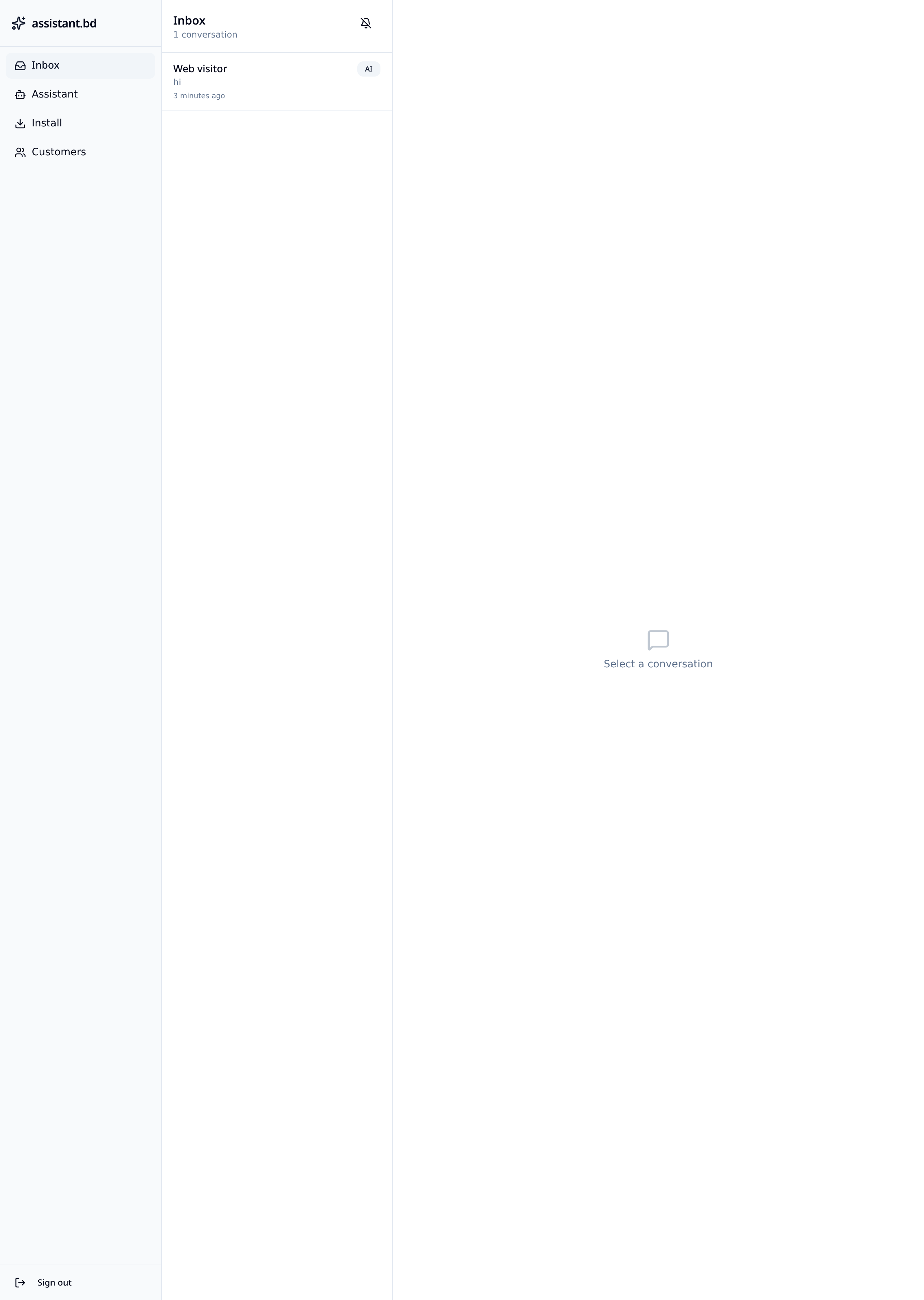
Open the Inbox to see every conversation, live. Click Take over to jump in as a human at any moment — the visitor sees a green Support agent bubble and knows a real person is helping.
Browser notifications and unread counts alert you the moment a customer is waiting.
You've seen the whole product. Setting up your own assistant is the same 10 screens — you just fill them with your business.